
Gmail Account Login Guide: Questions Buyers Ask About Their Delivery
October 6, 2026
BuyGmail Support Desk· Customer support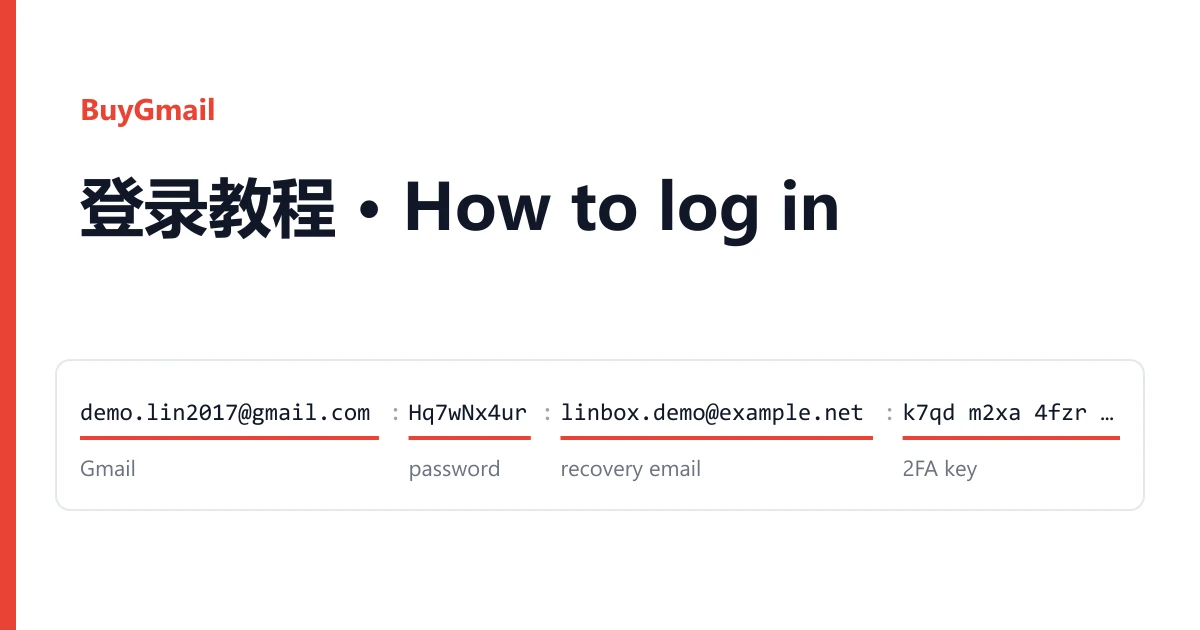
You place an order and the order page shows a line of text: a Gmail address, a few chunks of letters and digits, and sometimes a long run of characters in groups of four. Plenty of buyers stop right there, unsure which piece goes into Google's sign-in box. This page answers the questions we hear most, in the order you'll hit them.
Where is my account?
Not in your inbox. It's on the order page. Open Dashboard → Orders, pick the order, and the Delivered accounts box holds one account per line. Copy credentials copies all of it; Download saves it as a text file.
Download a copy first. You'll want the original line when you sign in, switch devices or open a ticket.
Which part is the email, which is the password?
Each supplier batch uses its own field order and its own separator. You'll see |, :, four dashes ----, or tabs that paste as gaps between columns. Ignore the separator. Take each piece on its own and match it by how it looks.
| What the piece looks like | What it is | What it's for |
|---|---|---|
An address ending in @gmail.com | The Gmail account | Goes into the sign-in box on gmail.com |
| A plain string right next to the Gmail address | Account password | The password for web sign-in |
| A second address with an @, at Outlook, Yahoo or elsewhere | Recovery email | What you type when Google asks you to confirm the recovery email |
| About 32 letters plus digits 2 to 7, usually in groups of four | 2FA key | Generates the 6-digit sign-in code. Never paste the key itself into Google |
| 16 lowercase letters in four groups, no digits | App password | For mail clients and scripts over IMAP and SMTP. Web sign-in won't accept it |
| A run of 8-digit numbers, usually ten of them | Backup codes | Each one replaces a 6-digit code once, then it's spent |
A listing guarantees only the fields its page names. A recovery email, key or backup codes beyond that are extras from the batch.
Four layouts you might get
The addresses, passwords and keys below are made up. The layouts are real.
demo.lin2017@gmail.com|Hq7wNx4ur
Gmail · password

demo.lin2017@gmail.com|Hq7wNx4ur|linbox.demo@example.net
Gmail · password · recovery email

sample.wei2019@gmail.com----Pz3kTm8vc----wei.backup@example.net
Gmail · password · recovery email

sample.wei2019@gmail.com	Pz3kTm8vc	wei.backup@example.net	k7qd m2xa 4fzr p6tw ny3b c5ve hj2u ls7g	40718263 95130472 ...
Gmail · password · recovery email · 2FA key · 10 backup codes
The last one is tab-separated. In a text editor it looks like a table. The spaces inside the key belong to the key, so don't split on them.
Two strings in groups of four. Which is which?
This trips people up more than anything else. Both the 2FA key and the app password can be written in four-character groups. Count them. An app password is 4 groups, 16 letters, no digits. A 2FA key is usually around 8 groups, about 32 characters, with some digits from 2 to 7 mixed in.
Mixing them up fails in different ways. Type the app password on gmail.com and Google says the password is wrong. Paste the 2FA key into the code box and Google rejects that too, because it wants the 6 digits the key produces.
What's the order for the first sign-in?
- Go to gmail.com, enter the piece ending in
@gmail.comand click Next. - Enter the password right beside it. Copy only that piece; with
----lines it's easy to grab a stray dash. - If Google asks for a 6-digit code, see the next section.
- If Google asks you to confirm the recovery email, type the full recovery address from your line.
- Once you're in the inbox, hold off on changing settings. Read the section on the first few days.
Google wants a 6-digit code. Now what?
The account has 2-Step Verification on, and the code comes from the 2FA key. Open the checkkit 2FA code generator, paste the whole key (spaces are fine) and press the button. You get 6 digits. Type them into Google within 30 seconds.
Code refused? Check that your computer or phone sets its time automatically. A clock a minute off produces codes Google won't take. Fix it, wait for the next code, and try again.
No key in your line, only a set of 8-digit numbers? Those are backup codes. On Google's verification screen choose Try another way, pick backup codes and enter one. Each works once. Cross off the one you used and keep the rest; you'll need them on the next new device.
Google says "Verify it's you". What do I do?
Google is meeting a new device, and most of these prompts clear once answered. It depends on what it asks for:
- Type the characters in an image: type them. If you can't read it, load another.
- Confirm the recovery email address: type the recovery email from your line. After two failed tries, stop and come back an hour later in the same browser.
- A code has been sent to the recovery email: you normally can't open that mailbox. If this appears on your very first sign-in, the account isn't working as delivered. Take a screenshot and open a ticket.
- Enter a phone number, or get a text on a number: if you don't have that number, don't keep retrying. Stop, screenshot it, and open a ticket.
Hammering the same prompt only makes Google more suspicious. One screenshot sent to us does more than ten more clicks.
I only got an app password. Can I sign in on the web?
An app password is for software only, such as a mail client on imap.gmail.com, port 993. Opening gmail.com in a browser still takes the account password, plus the second step on a new device. Our Gmail with app password listing promises the software side; web sign-in depends on whether your batch included a key or backup codes.
If you'll mostly work in a browser, old Gmail with 2FA is the easier pick. Every account there has 2-Step Verification on, and most batches include an authenticator key.
I'm in. What should I avoid for the first few days?
Honestly, most accounts that go wrong do it in the days after the first sign-in, not during it. An account that suddenly shows up on a new device and network, then gets a new password and a new recovery email straight away, is likely to be asked to verify again. By then the details you were given no longer match.
- Sign in from the same browser and the same network each time.
- Leave the password, recovery email and 2-Step Verification alone at first. When sign-in is steady, change one thing at a time and confirm you can still get in before the next.
- Changing the account password kills the app password at once. If you send mail from software, make a new app password in the security settings afterwards.
- Don't start with bulk mail, and don't email lots of unknown addresses in a short burst.
What counts as a bad account, and how do I report it?
If the steps above don't get you in, say a wrong password, a disabled account, a first sign-in that demands a code from the recovery mailbox, or a phone number you don't have, the account isn't working as delivered. Open a ticket from the order page within the guarantee period shown on the product, name the line that failed and attach a screenshot of Google's screen.
Problems that start after you changed the password, recovery email or key yourself fall outside that. So download the text file before your first sign-in.